Online Keyboard Shortcuts
Stop clicking around and transform your workflow across Windows, MacOS, and Linux with every essential keyboard shortcut at your fingertips.
AI tool Details
Explore More
Alternatives

About Online Keyboard Shortcuts
Online Keyboard Shortcuts is your ultimate, free resource for mastering the keyboard shortcuts that power Windows, macOS, and Linux operating systems. This comprehensive guide transforms how you interact with your computer, turning complex multi-step tasks into instantaneous keystrokes. Whether you are a seasoned developer, a busy professional, or a curious beginner, this tool empowers you to break free from the slow, repetitive cycle of mouse clicks and menu navigation. By centralizing the most important shortcuts for all three major platforms in one clean, accessible location, OnlineShortcuts.com eliminates the frustration of searching through scattered documentation. You will discover how a simple combination of keys can close windows, launch applications, manage virtual desktops, and edit text with breathtaking speed. The website is meticulously organized into systemwide shortcuts, Windows Key combinations, and application-specific commands for tools like Command Prompt, File Explorer, and web browsers. Each shortcut is clearly presented with visual key diagrams, making them easy to learn and remember. The true value lies in the transformation of your daily workflow: what once took several seconds now happens in an instant, reducing strain on your hands and eyes while dramatically boosting your productivity. This is not just a list of commands; it is a gateway to a more efficient, confident, and empowered computing experience. Best of all, it is completely free, with no ads, upsells, or spyware, ensuring your focus remains solely on mastering your machine.
Features
Comprehensive Multi-Platform Coverage
This feature delivers the most essential keyboard shortcuts for Windows, macOS, and Linux all in one unified interface. Instead of juggling multiple reference guides or memorizing platform-specific quirks alone, you gain instant access to the key combinations that matter most. From closing active windows with Alt+F4 on Windows to managing workspaces on Linux, every shortcut is curated for real-world utility. This eliminates the guesswork and frustration of switching between operating systems, allowing you to maintain a consistent, high-speed workflow no matter which machine you are using. The coverage extends beyond basic system commands to include application-specific shortcuts for tools like Command Prompt, File Explorer, and text editors, ensuring you have the right keystroke for every situation.
Visual Key Diagram Display
Each keyboard shortcut is presented with a clear, visual diagram showing the exact keys and their combination. Instead of reading a confusing text string like "Ctrl+Shift+Esc," you see a graphical representation that instantly communicates the sequence. This visual approach accelerates learning and retention, making it easy to grasp complex multi-key combinations at a glance. The diagrams are consistent across all platforms, so you can quickly compare how the same action is performed on Windows versus macOS. This feature is particularly valuable for visual learners and for anyone who wants to memorize shortcuts without tedious repetition. It transforms a potentially dry reference list into an intuitive, engaging learning tool.
Downloadable Cheatsheet in Multiple Formats
You are not limited to viewing shortcuts on the website alone. This feature allows you to download the entire collection as a PDF file or as PNG images in both dark and light themes. This means you can print a physical cheat sheet to keep at your desk, save a dark-mode PNG for your phone, or embed the light-mode image into your personal notes. The availability of multiple formats ensures you always have access to your shortcuts, even without an internet connection. This portability is a game-changer for professionals who work in different environments, students who study in libraries, or anyone who prefers a tangible reference. It turns a web resource into a permanent, personalized productivity tool.
Frequently Asked Questions with Humor and Clarity
The FAQ section is designed to address common user concerns with a refreshing blend of accuracy and lighthearted humor. Questions like "How do I use Computer Keyboard Shortcuts?" are answered with direct, practical guidance, while more whimsical queries like "Can I request a new software to be added?" receive playful but clear responses. This approach makes the learning process less intimidating and more enjoyable. The FAQs also cover important practical topics, such as the accuracy of shortcuts across software versions and the responsiveness of the site on mobile devices. By demystifying the tool and setting realistic expectations, this feature builds trust and encourages users to explore the shortcuts without fear.
Use Cases
Accelerating Daily Office Work
For professionals in office environments, every second counts. This use case transforms how you handle repetitive tasks like opening applications, switching between windows, and managing files. Instead of reaching for the mouse to close a window or launch the Start Menu, you use Alt+F4 and the Windows key. You can snap windows left or right with Win+Left/Right Arrow to compare documents side by side. Text editing becomes a breeze with Ctrl+C, Ctrl+V, and Ctrl+Z for undo. Over the course of a day, these small time savings compound into hours of regained productivity. You will feel less fatigued and more in control, allowing you to focus on the work that truly matters.
Streamlining Development and Coding Workflows
Developers and programmers thrive on efficiency, and this resource is tailored to their needs. Use Command Prompt shortcuts like F7 to view command history or Ctrl+C and Ctrl+V for copying and pasting code. In web browsers, Ctrl+T opens a new tab for documentation, while Ctrl+Shift+T reopens a closed tab instantly. Virtual desktop shortcuts like Win+Ctrl+D create isolated workspaces for different projects, and Win+Ctrl+Left/Right Arrow lets you switch between them without breaking your flow. This use case eliminates the friction of navigating between code editors, terminals, and documentation, enabling a seamless, high-velocity coding experience that boosts both speed and accuracy.
Enhancing Creative and Design Work
Creative professionals who use design software, video editors, or audio tools will find immense value in mastering keyboard shortcuts. For example, in text-heavy applications, Ctrl+B, Ctrl+I, and Ctrl+U allow for instant formatting without lifting your hands from the keyboard. The ability to quickly create screenshots with Win+Shift+S or open the Emoji Panel with Win+. adds a layer of expressiveness to your work. By reducing reliance on the mouse, you can maintain a steady creative rhythm, experimenting with different options and making rapid adjustments. This use case turns your computer into a true extension of your creative mind, where ideas flow directly from thought to action.
Empowering Remote Workers and Multitaskers
For those who juggle multiple applications, virtual meetings, and constant notifications, this tool is a lifeline. Use Win+D to instantly show or hide the desktop when you need to find a file quickly. Win+Tab opens Task View to see all your open windows and virtual desktops at a glance. In web browsers, Ctrl+Tab cycles through tabs, while Ctrl+W closes the current one. The ability to lock your screen with Win+L provides instant security when stepping away. This use case is about maintaining control and composure in a fast-paced digital environment, ensuring you can switch contexts rapidly without losing your place or your focus.
Frequently Asked Questions
What is Computer Keyboard Shortcuts?
Computer Keyboard Shortcuts is a comprehensive, free online guide that curates the most important keyboard shortcuts for Windows, macOS, and Linux operating systems. It is designed to help users of all skill levels improve their productivity by providing quick, visual access to commonly used commands and hotkeys. The website, OnlineShortcuts.com, organizes shortcuts into systemwide commands, Windows Key combinations, and application-specific shortcuts for tools like Command Prompt, File Explorer, and web browsers. It is a one-stop resource that eliminates the need to search through scattered documentation, empowering you to work faster and more efficiently.
How do I use Computer Keyboard Shortcuts?
Using the site is straightforward. Browse the organized lists of shortcuts, which are grouped by category such as Windows Systemwide, Windows Key, and Application Specific. Each shortcut is displayed with a visual key diagram, so you can see exactly which keys to press. Simply find the shortcut you need, memorize the combination, and start using it in your daily workflow. The site also offers downloadable cheat sheets in PDF and PNG formats, allowing you to keep a physical or digital reference handy. There is no sign-up, no login, and no cost. Just explore, learn, and transform your productivity.
Are the shortcuts updated regularly?
The shortcuts are curated to be as accurate as possible for the specified software versions at the time of writing. However, software updates from operating system vendors and application developers can sometimes change hotkeys. While the site aims to keep its content current, it is always good practice to verify shortcuts with the specific version of the software you are running. If you notice a discrepancy, you are encouraged to think of the correct shortcut really hard, and the team will mentally receive your message. For the most reliable experience, check the official documentation of your software for any recent changes.
Is there a mobile version of the site?
Yes, the website is designed to be fully accessible and responsive. You can view all the keyboard shortcut cheatsheets on your mobile device, tablet, or desktop computer. The layout automatically adjusts to fit your screen size, ensuring a clear and usable experience regardless of your device. This means you can quickly look up a shortcut on your phone while working at your desk or on the go. The downloadable PNG images are also optimized for mobile viewing, making it easy to save a dark or light theme version directly to your phone for offline access.
Similar to Online Keyboard Shortcuts
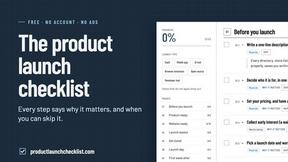
Product Launch Checklist
A free launch checklist for SaaS, apps, AI tools and more. Every step says why it matters and when you can skip it.

Flux Lora
Explore Flux LoRA online workflows in a browser-based AI Studio, with a roadmap for dedicated models, generation, and guided training.

HomeAnswerBook
Practical, independent guides to home repairs, maintenance, costs, troubleshooting, and everyday fixes.
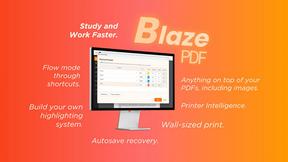
BlazePDF
Highlight faster. Study in flow with custom shortcuts and a workflow built around you. Print smarter, or turn any page into a tiled poster.
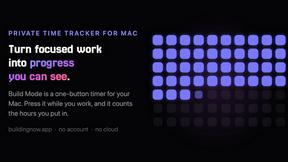
Build Mode for Mac
Build Mode is a Mac app that turns focused sessions into visible progress, so you can see the work adding up before the results arrive.